Download Bluebirds
Secure Browser
The official lockdown exam client for Bluebirds proctored assessments. Enforces screenshare, blocks secondary monitors, isolates unauthorized processes, and auto-launches directly from your exam portal link.
Windows Client
Windows 10 & 11
Select Architecture
BluebirdsSecureBrowser-Setup.exe · ~95 MB
macOS Client
macOS Big Sur (11) or newer
Select Architecture
BluebirdsSecureBrowser.dmg · ~96 MB
Bypass macOS Gatekeeper Quarantine
If macOS shows "The application 'BluebirdsSecureBrowser' can't be opened", run this 1-second Terminal command to clear the quarantine lock.
Drag App to Applications
Open the downloaded .dmg file and drag BluebirdsSecureBrowser.app into your Applications folder.
Open macOS Terminal
Press ⌘ Cmd + Space, type Terminal, and press Enter.
Copy, Paste & Press Enter
Click Copy Terminal Command on the right, paste it into Terminal (⌘ V), and press Enter.
Direct Launch Note: Do not open the app by double-clicking in Finder. Return to your student portal and click "Start Assessment" — macOS will auto-launch the secure browser!
sudo xattr -rd com.apple.quarantine /Applications/BluebirdsSecureBrowser.app💡Moved BluebirdsSecureBrowser.dmg directly into Applications?
A .dmg is a container, not the app! This 1-line command mounts it, copies the app into Applications, and clears Gatekeeper in 2 seconds:
Security Features
Built for institutions that can't afford compromised exams.
Screenshare Enforcement
Mandatory screenshare is verified before the exam begins. Candidates must grant access to continue.
Multi-Monitor Blocking
Detects and blocks secondary displays at startup, preventing information leakage to additional screens.
Process Isolation
Detects and force-closes blacklisted applications — including Zoom, Teams, Discord, and OBS — before the exam loads.
VM Detection
Identifies virtualized environments including VMware, VirtualBox, and Parallels, and refuses to launch inside them.
Deep Link Launch
Students launch the secure browser directly from the exam portal via a one-click custom protocol — no manual startup.
Automatic Updates
The browser silently auto-updates to the latest version when not in an active exam session.
System Requirements
Windows minimum specs
Processor
Intel Core i3 / AMD Ryzen 3 or better
Storage
200 MB free disk space
Display
Single monitor only (secondary monitors blocked)
Network
Active internet connection required
Important: Secondary monitors must be disconnected before launching the browser. The application will not start until only a single display is active.
Installation Guidelines
Up and running in 3 simple steps
Follow the instructions below to install and launch the Bluebirds Secure Exam Browser on your machine.
Download the installer
Select your operating system (Windows or macOS) above and click Download. The file size is around 80-96 MB.
Run installation & bypass SmartScreen
Windows may show a SmartScreen or browser security prompt. Follow our visual guide below to click 'Keep' and 'Run anyway'.
Launch from exam portal
Do not open the app manually. Return to tests.bluebirdstraining.com and click 'Start Test' — the portal launches it automatically.
Windows Security & Browser Warning Guide
Because Bluebirds Secure Exam Browser is an institutional software client, Edge and SmartScreen display standard warnings. Click any image to zoom in.
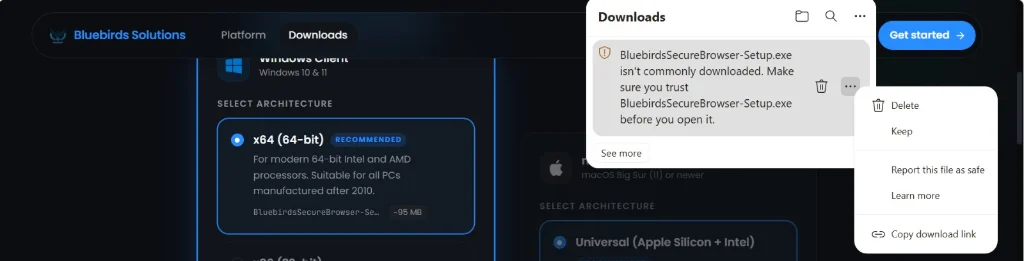
Click the Three Dots (...) & Select "Keep"
When downloading in Microsoft Edge or Google Chrome, the browser may notify that the file "isn't commonly downloaded".
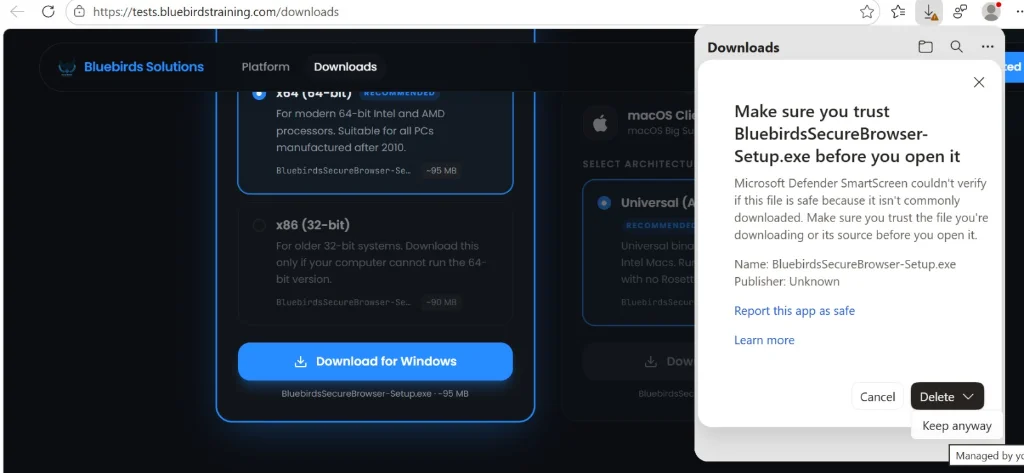
Confirm "Keep anyway"
A verification dialog titled "Make sure you trust BluebirdsSecureBrowser-Setup.exe before you open it" will appear.
Click "Open file"
Once downloaded, click directly on "Open file" in the browser downloads menu or double-click BluebirdsSecureBrowser-Setup.exe from your Downloads folder.

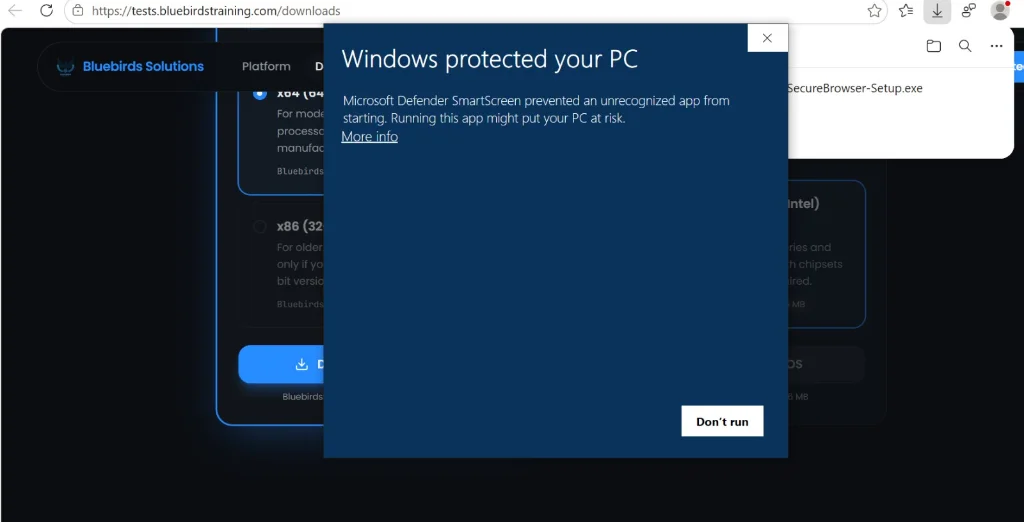
Windows Defender SmartScreen: Click "More info"
Windows may show a blue banner reading "Windows protected your PC — Microsoft Defender SmartScreen prevented an unrecognized app from starting".
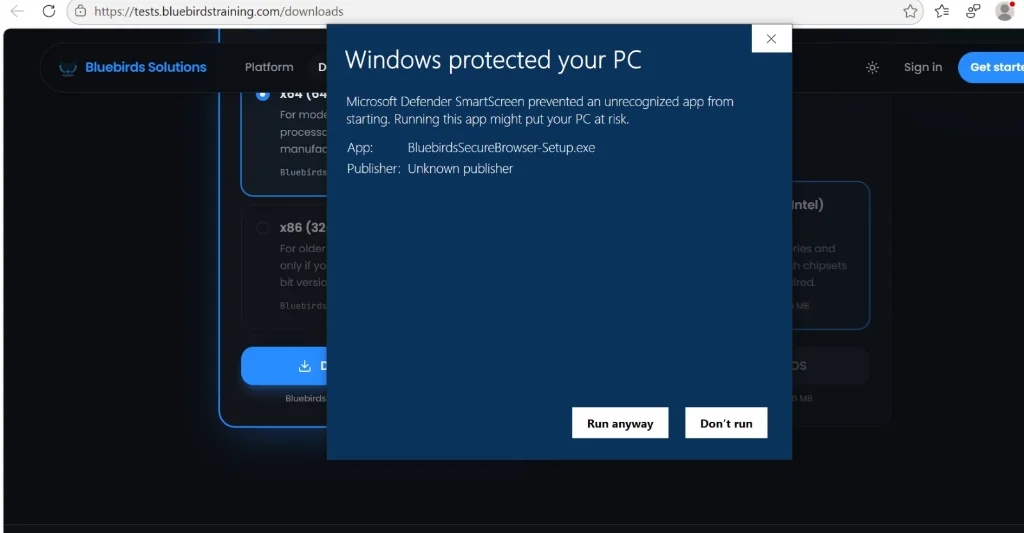
Click the "Run anyway" Button
After clicking "More info", the dialog displays the application name (BluebirdsSecureBrowser-Setup.exe) and reveals a new "Run anyway" button.
Ready to take your exam securely?
Download and install the secure browser, then head to your student portal to start your assessment.