Windows Installation &
SmartScreen Bypass Guide
Because the Bluebirds Secure Exam Browser is an institutional software client, Microsoft Edge and Windows Defender SmartScreen may display standard warnings. Follow the 5 visual steps below to complete the setup.
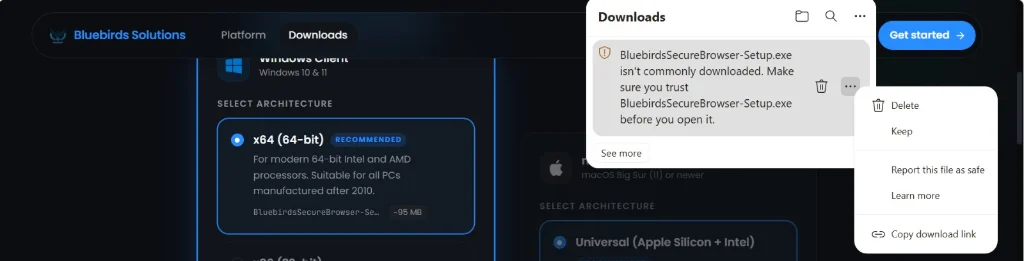
Click the Options Menu (...) and select 'Keep'
When downloading in Microsoft Edge or Google Chrome, the browser may display an alert stating that the installer isn't commonly downloaded.
Action Checklist:
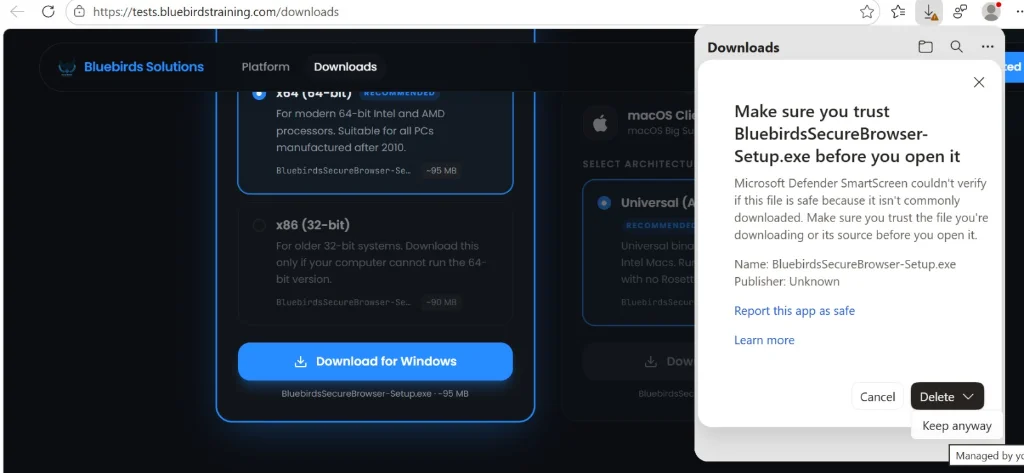
Confirm 'Keep anyway' in the Trust Dialog
A confirmation dialog titled 'Make sure you trust BluebirdsSecureBrowser-Setup.exe before you open it' will pop up.
Action Checklist:
Click 'Open file' to run the setup wizard
Once the download finishes, launch the installer directly from your browser or your Downloads folder.
Action Checklist:

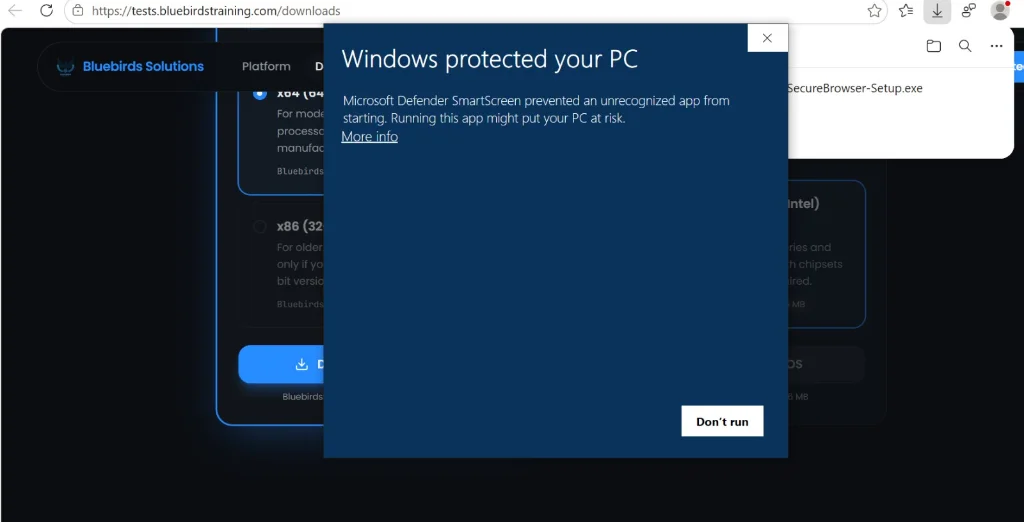
Windows protected your PC: Click 'More info'
Windows Defender SmartScreen may display a blue dialog stating 'Microsoft Defender SmartScreen prevented an unrecognized app from starting'. This is normal for customized exam software.
Action Checklist:
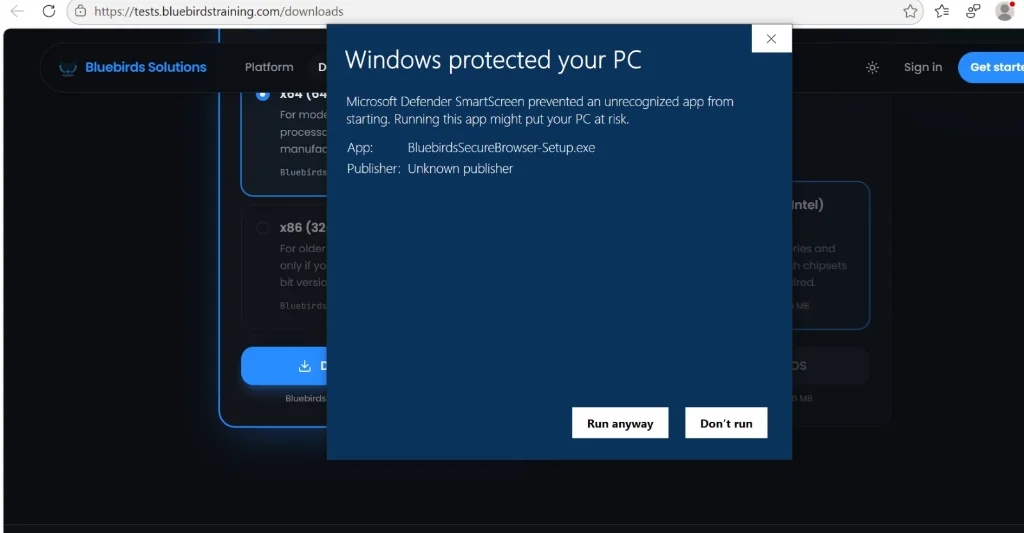
Click the 'Run anyway' button
After clicking 'More info', the dialog will reveal the application name (BluebirdsSecureBrowser-Setup.exe) and a new 'Run anyway' button at the bottom.
Action Checklist:
Installation Finished?
Once installed and cleared, do not open the browser manually from Applications. Sign in to the student exam portal and click "Start Assessment" to launch automatically.